Troubleshooting NoCat
If you run into problems configuring or using
NoCat, three useful troubleshooting tools are the NoCat log file
(
/usr/local/nocat/nocat.log),
the Ethereal protocol analyzer, and
IPtables. Here are descriptions of a couple of troubleshooting
sessions I was involved in.
Hopefully, they will give you some hints about how you might
cure your own troubles.
Trouble #1: Allowing a Redirected Site
Basically, what you’re doing here is following
the directions for Test #6 and Test #7, but using
greendept.org
instead of
rockisland.com.
It doesn’t work. Ethereal and IPtables reveal the problem,
suggesting a solution.
1.
Edit
nocat.conf
as follows:
GatewayName: My greendept-only NoCat Portal
AllowedWebHosts: greendept.org
MembersOnly 1
GatewayMode Open
2.
Edit
splash.html
to redirect to
www.greendept.org.
(See the section
All Roads Lead to Rome
for instructions on
editing splash.html.)
3.
Reboot the server and
start the gateway.
4.
On the client, type
www.google.com
in the browser address
bar, or attempt to refresh the
Google screen, if it is already open. You get the NoCat splash
screen, as shown in Figure 10-7 or
10-8 (depending on whether this is the first login or a
subsequent login). So far,
everything is going the same as in Test #6 and Test #7.
5.
Click “Login.” At this
point, you would expect to be redirected to
www.greendept.org.
Instead, you get the splash screen again.What is wrong?
6.
In a new terminal window,
at the Linux command prompt, type
IPtables –L.
You should see something like the
following:
Chain INPUT (policy ACCEPT)
target prot opt source destination
Chain FORWARD (policy ACCEPT)
target prot opt source destination
NoCat all -- anywhere anywhere
Chain OUTPUT (policy ACCEPT)
target prot opt source destination
Chain NoCat (1 references)
target prot opt source destination
NoCat_Ports all -- anywhere anywhere
NoCat_Inbound all -- anywhere anywhere
ACCEPT all -- 192.168.2.0/24 anywhere MARK match
0x1
ACCEPT all -- 192.168.2.0/24 anywhere MARK match
0x2
ACCEPT tcp -- 192.168.2.0/24 216.218.203.211 tcp
dpt:http
ACCEPT tcp -- 216.218.203.211 192.168.2.0/24 tcp
spt:http
ACCEPT tcp -- 192.168.2.0/24 216.218.203.211 tcp
dpt:https
ACCEPT tcp -- 216.218.203.211 192.168.2.0/24 tcp
spt:https
ACCEPT tcp -- 192.168.2.0/24
ip-64-202-167-129.secureserver.net tcp dpt:http
ACCEPT tcp -- ip-64-202-167-129.secureserver.net
192.168.2.0/24 tcp spt:http
ACCEPT tcp -- 192.168.2.0/24
ip-64-202-167-129.secureserver.net tcp dpt:https
ACCEPT tcp -- ip-64-202-167-129.secureserver.net
192.168.2.0/24 tcp spt:https
ACCEPT all -- dslrouter 192.168.2.0/24
ACCEPT tcp -- 192.168.2.0/24 dslrouter tcp
dpt:domain
ACCEPT udp -- 192.168.2.0/24 dslrouter udp
dpt:domain
ACCEPT all -- apollo.rockisland.com
192.168.2.0/24
ACCEPT tcp -- 192.168.2.0/24
apollo.rockisland.comtcp dpt:domain
ACCEPT udp -- 192.168.2.0/24
apollo.rockisland.comudp dpt:domain
ACCEPT all -- mars.rockisland.com 192.168.2.0/24
ACCEPT tcp -- 192.168.2.0/24
mars.rockisland.comtcp dpt:domain
ACCEPT udp -- 192.168.2.0/24
mars.rockisland.comudp dpt:domain
DROP tcp -- !216.218.203.211 anywhere tcp
dpt:5280
DROP all -- anywhere anywhere
Chain NoCat_Inbound (1 references)
target prot opt source destination
ACCEPT all -- anywhere 192.168.2.100
Chain NoCat_Ports (1 references)
target prot opt source destination
DROP tcp -- anywhere anywhere tcp dpt:smtp MARK
match 0x3
DROP udp -- anywhere anywhere udp dpt:smtp MARK
match 0x3
This printout shows six “chains”—six linkable
sequences of firewall rules. (Each line is a rule.) When the
firewall receives an IP packet, the packet has to “run the
gauntlet” of six chains, in order, from top to bottom.Within
each chain, rules are processed in order, unless control is
passed to another chain. If control is passed, than the other
chain is executed, after which control is passed back to the
first chain. At any point, a rule may indicate that the packet
should be accepted or dropped.
The
INPUT
and
OUTPUT
chains deal with packets
originating or terminating in the Linux box itself. NoCatAuth is
interested only in packets originating or terminating outside
the Linux box. Therefore, the
INPUT
and
OUTPUT
chains are empty, and you
can ignore them. The
FORWARD chain deals
with packets originating outside the Linux box, and the one rule
in that chain simply says to pass
all packets to the NoCat chain.
The NoCat chain does the following:
1.
First rule: Passes the
packet to the NoCat_Ports
chain, where the
packet is dropped if it is Public
class traffic on a port that is disallowed in the
ExcludePorts
parameter in
the nocat.conf
file. (The
MARK
section on the far right
indicates Public class with the
hexadecimal number 0
�
3. Owner class is 0
�
1, and Co-op class is 0
�
2. See/usr/local/libexec/nocat/initialize.fw.)
The “mark match” extension is used to match
packets based on “marks.” A mark is a special field, maintained
only within the operating system kernel, while the packets
travel through the computer. This was previously done with the
FWMARK target in ipchains, and many people still refer to FWMARK
even when dealing with IPtables.
2.
Second rule: Passes the
packet to the NoCat_Inbound
chain, where it is
accepted if its destination is the
client (192.168.2.100).
3.
Third rule: Accepts all
Owner class traffic from the internal network (192.168.2.0/24).
(The /24 is the same as a subnet mask of
255.255.255.0. That is, it means that only the first three
sections of the IP address are significant. The last section can
be anything.)
4.
Fourth rule: Accepts all
Co-op class traffic from the internal network.
5.
Next four rules: Accept
everything, coming or going, between the internal network
(192.168.2.0/24) and 216.218.203.211 (http://nocat.net).
6.
Next four rules: Accept
everything, coming or going, between the internal network
(192.168.2.0/24) and
ip-64-202-167-129.secureserver.net.
7.
Thirteenth rule: Accept
everything originating in the DSL router and going to the
internal network. This would typically be DNS or DHCP traffic.
(Other traffic passes through the
DSL router, but does not originate in it.)
8.
The next eight rules all
have to do with accepting DNS-related traffic.
(Rockisland.com’s
DNS servers were being used.)
9.
The last two rules drop
traffic that has made it this far without being accepted
anywhere. The key to the problem
lies in the rules concerning
ip-64-202-167-129.secureserver.
net (step 6
above). One would expect to find rules concerning
greendept.org
here, since that is the
site listed in
AllowedWebHosts.
However, when NoCatAuth sent out a
DNS query to find out where to send traffic for
greendept.org,
it was told, in effect, that
ip-64-202-167-129.secureserver.net was taking calls for
greendept.org.
NoCatAuth did not know that this
address refers to a Web forwarding service that forwards traffic
for greendept.org
to still another domain.
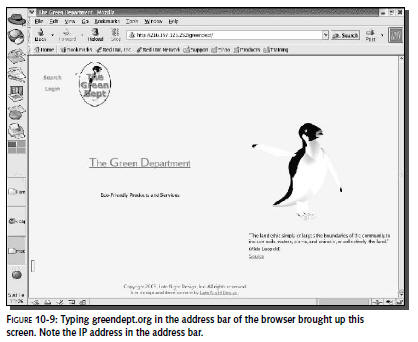
Which other domain? Type
www.greendept.org
in the address bar of the
browser on the Linux machine. (Use
the Linux machine, because the client can’t contact
greendept.org
at
the moment.) You see that you are redirected to a page at
IP address 216.197.125.252 (see
Figure 10-9). This redirection is not set in stone, by the way,
so it could have changed by the
time you read this. However, the principles remain applicable.)
What is happening is something like this: The
browser on the client sends out a request for
greendept.org.
The Web forwarding service raises its hand and says, “That’s
mine.” At this point, NoCatAuth
creates the rules in the firewall, using the address of the Web
forwarding service (ip-64-202-167-129.secureserver.net).
However, when the browser actually
requests a page, the Web forwarding service tells the browser
that the page has been moved to
216.197.125.252.When the browser tries to access it there, the
firewall won’t let it, because
there are no rules permitting traffic to or from
216.197.125.252.
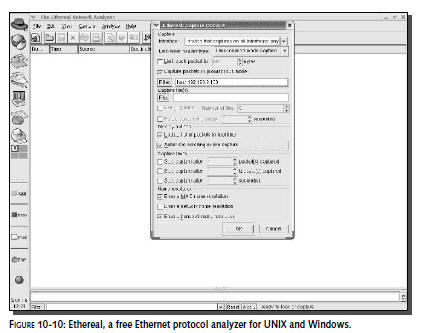
You can confirm this scenario using Ethereal.
Refer to Figure 10-10 for the following instructions.
1.
Bring up Ethereal. (In Red
Hat: Internet ➪
More Internet Applications
➪
Ethereal.)
2.
Click the left-hand
button, “Start New Capture.”
3.
In the “Ethereal: Capture
Options” dialog, click the “Capture Interface” drop-down
menu and select “Pseudo-device that captures on all
interfaces.”
4.
In the “Filter” box, type
something of the form host 192.168.2.100, but substituting the
address of your client machine. This will limit the capture to
packets to and from the client.
5.
Select the check boxes for
“Update list of packets in real time” and “Automatic scrolling
in live capture.”
6.
Click OK at the bottom of
the dialog. Ethereal starts capturing packets.
7.
Try to access
greendept.org
from the client. You see a
burst of packets in the Ethereal
capture window.When the burst of activity is over, click the
Stop button in Ethereal. In
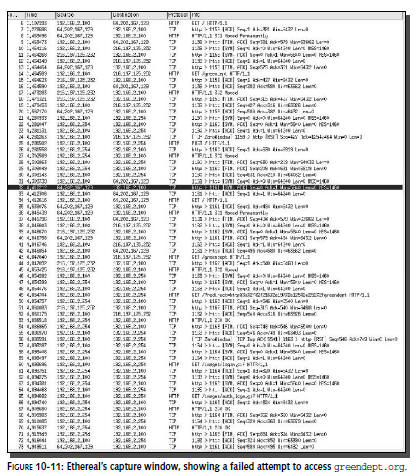
Ethereal’s capture window, you will see something resembling
Figure 10-11.
In line 6 (the first line displayed in the
figure), the client requests the page from the Web forwarding
service (64.202.167.129). This traffic is allowed, because the
firewall is set up to allow communication with the Web
forwarding service.
However, in line 8, the Web forwarding service
informs the client that the page has “Moved
Permanently.”
In line 10, the client starts communicating with
216.197.125.252. Clearly (though the packet
capture display doesn’t show this), the client
has been told that the file is at 216.197.125.252.
In line 27, NoCatAuth (192.168.2.254) tells the
client that the page has moved.
In line 34, the client once again tries to get
the page from the forwarding service.
Once again, the Web forwarding service tells the
client that the page has moved permanently
(line 36) and the client turns once again to
216.197.125.252 (line 38).
In line 45, 216.197.125.252 tells the client
that the page has moved.
After that, the conversation is almost entirely
between the client and NoCatAuth
(192.168.2.254), culminating in loading the
splash page. For instance, in line 69, the client
requests
/images/login.gif,
which is one of the images on the splash page.
Although you might have to be a bit guru-ish to
follow the details, the general plot-line seems
to confirm the surmise you formed by looking at
IPtables.
The solution is straightforward: Add
216.197.125.252 to
AllowedWebHosts.With
both
greendept.org
and 216.197.125.252 in
AllowedWebHosts,
the firewall rules will allow
both the Web forwarding service and
216.197.125.252, and you will get the requested page.
Trouble #2: The Eternal Splash
The most serious problem that I encountered when
trying to use the
AllowedWebHosts
parameter was clients getting caught in a cycle
of endless splash screens, even when requesting
a site that had been accessible in previous
tests. I can’t give you step-by step instructions
for replicating this problem, but I won’t be a
bit surprised if you run into it on your own.
Here’s a snippet of the NoCat log from the
period of time in question:
[2004-02-12 17:53:54] Peer 12.40.110.242
requests
liveupdate.symantecliveupdate.com
[2004-02-12 17:53:54] Capturing peer
12.40.110.242
[2004-02-12 17:53:54] Spawning child process
30554.
[2004-02-12 17:53:54] Connection to 12.40.110.1
from 12.40.110.242
[2004-02-12 17:53:54] Peer 12.40.110.242
requests 12.40.110.1
[2004-02-12 17:53:54] Displaying splash page to
peer 12.40.110.242
[2004-02-12 17:54:02] Spawning child process
30555.
[2004-02-12 17:54:02] Connection to 12.40.110.1
from 12.40.110.242
[2004-02-12 17:54:02] Peer 12.40.110.242
requests
liveupdate.symantecliveupdate.com
[2004-02-12 17:54:02] Capturing peer
12.40.110.242
[2004-02-12 17:54:03] Spawning child process
30556.
[2004-02-12 17:54:03] Connection to 12.40.110.1
from 12.40.110.242
[2004-02-12 17:54:03] Peer 12.40.110.242
requests 12.40.110.1
[2004-02-12 17:54:03] Displaying splash page to
peer 12.40.110.242
[2004-02-12 17:54:16] Spawning child process
30558.
[2004-02-12 17:54:16] Connection to 12.40.110.1
from 12.40.111.238
[2004-02-12 17:54:16] Peer 12.40.111.238
requests www.livejournal.com
[2004-02-12 17:54:16] Capturing peer
12.40.111.238
[2004-02-12 17:54:16] Spawning child process
30559.
[2004-02-12 17:54:16] Connection to 12.40.110.1
from 12.40.111.238
[2004-02-12 17:54:16] Peer 12.40.111.238
requests 12.40.110.1
[2004-02-12 17:54:16] Displaying splash page to
peer 12.40.111.238
[2004-02-12 17:54:16] Spawning child process
30560.
[2004-02-12 17:54:16] Connection to 12.40.110.1
from 12.40.111.238
[2004-02-12 17:54:16] Peer 12.40.111.238
requests 12.40.110.1
[2004-02-12 17:54:16] Displaying splash page to
peer 12.40.111.238
The problem here appears to be a Symantec virus
checker trying to check its home site for updates to its virus
definitions. The requests are refused (because the virus
checker’s home site is not in
AllowedWebHosts),
causing the Windows client to return to the splash screen. The
one “legal” request (for
greendept.org,
for instance—not shown above) is lost in a hail
storm of “illegal” requests made by the virus checker.
Another culprit in a similar incident was an
e-mail program that automatically tries to connect to a
particular Web site, to display news headlines and so on. Many
programs now generate network traffic automatically, and
sometimes repetitively and insistently. One solution to this
problem is simply to allow such traffic. The log file will tell
you which domains you need to put on the
AllowedWebHosts
list. However, it is
likely that no matter how many domains you add, new ones will
keep popping up. There are too many applications that access the
network automatically to have any hope of offering a smooth
experience for every user.
That said, you can offer a smoother and smoother
experience over time, as you reconfigure your firewall rules to
handle the vagaries of clients. If you need to add large numbers
of rules, and Perl scripting is an option for you (either
because you know Perl or are willing to learn it), considered
modifying
/usr/local/libexec/initialize.fw
by adding rules at
the end of the file.
Trouble #3: More Eternal Splash
Do not be lulled into thinking that you now know
“the cause” of the eternally returning splash screen. There is
an endless variety of problems that can cause this same symptom.
You have to use troubleshooting tools such as the log file,
IPtables and Ethereal to determine what is happening.
For instance, at one point, I put Google in
AllowedWebHosts.
NoCatAuth created a set of firewall
rules with 216.239.57.104. That address indeed accessed Google
when entered in the browser address
bar. Everything worked fine the first time I tested via the
gateway from a client, too. It
looked like I was set.
However, the next time I tried to access Google
through the gateway, I encountered the eternal splash. The log
file just showed that the client was trying to access Google;
there were no unexpected or extraneous requests as in the
previous example.
Ethereal, however, showed that the client was
trying to access 216.239.57.99 (which the firewall didn’t know
about) instead of 216.239.57.104 (which the firewall did know
about). So, instead of putting
google.com
in
AllowedWebHosts,
I put both IP addresses in.
NoCatAuth created firewall rules for both addresses, and once
again everything worked as expected
in the first test.
It wasn’t long, though, before I was again
encountering the eternal splash when I attempted to access
Google. Consulting Ethereal, I found that the client was now
attempting to access
216.239.53.99,
which turned out to be another valid Google address, but not one
covered in the firewall rules.
A little investigation (via Google searches!)
educated me to the fact that Google had, at that time, over a
dozen data centers, each of which could use many IP addresses.
And it was adding a data center every few months!
One easy way to make Google one of a small group
of allowed hosts is to put a link on the splash page with the IP
address of the Google site that is in the firewall rule. That
way, users are always asking for the IP address that the
firewall knows about. You could even put in several links with
different IP addresses for Google, in case one of them doesn’t
work for some reason.
Another option, of course, is to comment out
MembersOnly 1,
which allows users to access any
site on the Web after clicking the Login (or Continue) button.
In other words, give your users Google by giving them the whole
Web.
Summary
In this chapter, you’ve learned the basics
required to successfully install, configure, and troubleshoot
the NoCatAuth “captive portal,” which will help you secure,
manage, and monitor your free wireless hotspot. If you have
actually succeeded at this task, you probably have a gorgeous
cathode ray tan by now, and have not seen daylight or your
friends for days, possibly weeks. Time for some outdoor fun!
Read on to Chapter 11, “Playing Access Point Games,” for a fox
hunt (you’re the fox), driving games, chatting, and other ways
to be sociable wirelessly.