PC to TiVo to PC
TiVo Series 2 really shows its colors when
piloted with the TiVo Home Media Option. This is a software
add-on for the TiVo that enables broadband streaming music,
digital picture slideshows, sharing recordings across multiple
TiVo, and setting recording options through the TiVo Web site.
TiVo Series 1 does not currently support the
Home Media Option, but serious hackers can use the broadband
readiness for getting under the hood of TiVo. Transferring files
to and from the TiVo, adding software hacks, and playing MP3s
are among the many Series 1 hacks available.
We’ll cover the following scenarios:
Playing music on TiVo
Viewing a slideshow
Watching on another TiVo
Sharing with your neighbor
Publishing with the Home Media Option
Purchase Home Media Option direct from TiVo to
open the floodgates. Download the TiVo Desktop software from the
Tivo.comWeb
site, and install it onto a Windows PC running
Windows 98 or higher or a Macintosh running OS X 10.2 or
higher.
For some reason, TiVo Desktop may also be called
TiVo Publisher. On the Tivo.com
Web site, the references are to TiVo Desktop software.
When installed, the shortcut and software title is TiVo
Publisher.
The TiVo Desktop software has two components that work
together:
The
Publisher File Manager
The
TiVo Server
Desktop Publisher and Server
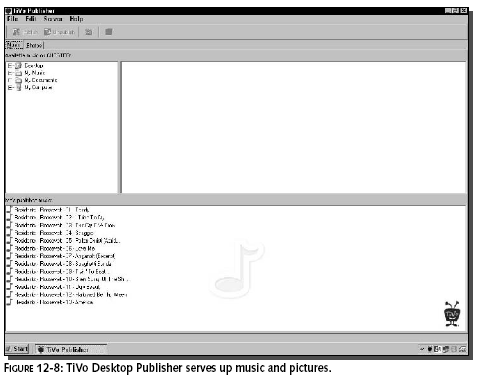
The Publisher is a graphical user interface to
browse files on your PC hard drive.TiVo Publisher has two
categories: Music and Photos. The music feature plays MP3 files
directly. It recognizes MP3 playlists and extracts the MP3 files
into the selector window. The photo feature recognizes many
different file types, GIF, JPG, BMP, PNG, and DIB.
To publish a file, drag and drop the file from
the file selector listing to the “Published” pane. Figure 12-8
shows the publisher with several MP3s published and ready to
play on TiVo. After selecting and publishing the files, click
the Server menu item and Start the TiVo Server. A black TiVo
icon should appear in the system tray indicating the server is
running. If the server is “paused,” a red “X” will be placed
over the icon.
To play music or view photos, follow these
steps:
1.
Ensure the TiVo Server is
running on your PC.
2.
Press the TiVo button on
the remote.
3.
Select Music and Photos.
4.
Wait up to 30 seconds for
the TiVo to discover your PC files.
5.
Select the appropriate
media and press Play to start the slideshow or music.
Press the Enter button on the TiVo remote to
select options while playing a slideshow or music. You can also
play media content from TiVo’s central servers. This feature is
called “TiVo Online.” Select TiVo Online as you would a TiVo
Publisher source.
Remote Viewing
The Home Media Option also allows two separate
TiVo units to work together. You can watch shows recorded on
your family room TiVo from your bedroom TiVo. Not only does it
allow this “Multi-room viewing,” but now the show can actually
be copied from one TiVo to the other.
This requires at least two TiVo DVRs under the
same account. Both must have a network connection to each other.
And both must have the Home Media Option upgrade.
A few steps are required at the
Tivo.comWeb
site to get started:
1.
Buy the TiVo Home Media
Option for both TiVo DVRs.
2.
Surf to the “Manage My
Account” section on
www.Tivo.com.
3.
Select “DVR Preferences.”
4.
Enable “Permit Multi-Room
Viewing” for all TiVo that will trade content.
5.
Click Save Preferences on
the Web site.
6.
Now on the TiVo DVR
screen, go to Phone and Network Setup and select “Connect to
the TiVo service now” to download the latest
settings.
Once the Home Media Option is enabled on both
TiVo units, an update to the TiVo service has taken place, and 5
minutes have elapsed, the TiVo units will now be able to view
content on each other through the “Now Playing on TiVo” screen.
Scroll to the bottom of the “Now Playing on
TiVo” screen to see other TiVos in your home network. Click the
TiVo icon to view its contents. Make sure the TiVo units are all
on the same TCP/IP subnet due to possible limitations with Home
Media Option discovery and routing. Theoretically, two TiVo
units can share content even though they are miles apart.Try it
out!