
Murmuring Merlin
Hooking up the puppet
Merlin is just bursting to have his say at this point, so it’s time to take the final steps to activate the newly loquacious puppet.
Making sounds
We know you’re the inquiring kind who will want to program custom phrases before long, so here’s an overview of the process to get you started:
1. Open the EEPROM Editor screen.
2. Select the check box for the Phrase# that you wish to use for a custom sound.
3. In the Phrase Editor screen that opens, select the sounds that you wish to include in a phrase.
Be sure to check out words available from the library.4. After you make a custom phrase, click Done in the bottom right of the screen.
This takes you back to the EEPROM Editor screen, where you can see that the selected sounds have been added to the phrase.5. Close the EEPROM Editor screen and open the Event Configuration screen.
6. Enter the phrase number that you created in the Phrase# to Play box for one of the input #s.
See the nearby table to see how input numbers correspond to pin numbers.7. Connect the serial cable and then click the Write Data to SpeakJet button to program the chip.
Follow these steps to hook up and operate the puppet:
1. Plug the phono plugs from one of the tactile switches into the box and press the switch.
If the sound is too soft or too loud, adjust the potentiometer to get the sound level right.2. Unplug the phono plugs and insert the electronics box in the puppet, taking care not to move the tactile switches out of position.
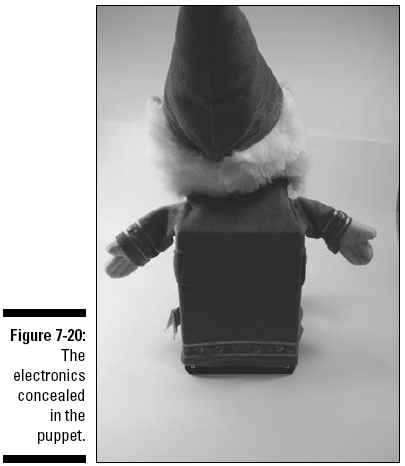
3. Insert each phono plug in a phono jack and tuck the wires out of site, as shown in Figure 7-20.